 DIYTech Labs
Draw Signature
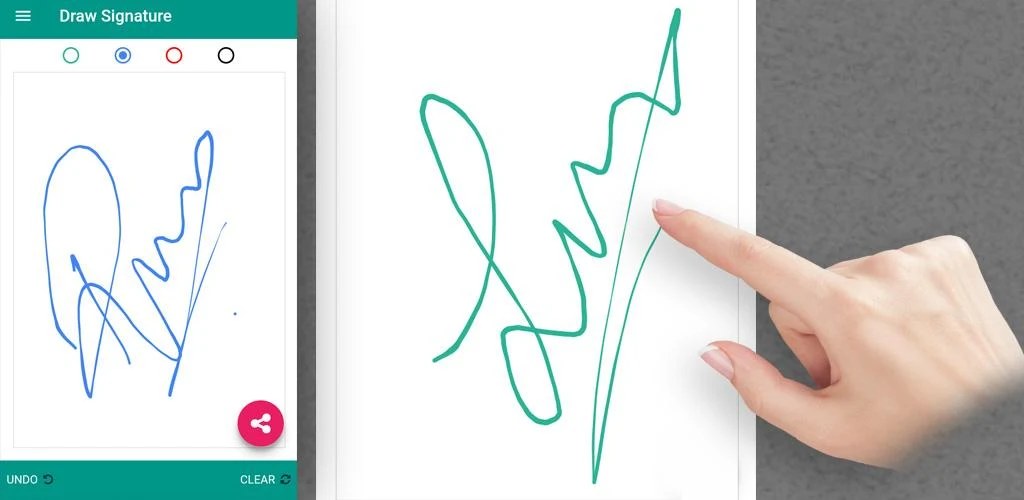
Draw Signature is a free Android app that lets you create a handwritten electronic signature in seconds. Draw with your finger, or type your name and choose a signature style, then export a clean transparent PNG you can place on any document.
On Google Play: 100,000+ installs · Free to download · Listed since 2017

What You Can Do
- Draw a natural signature with adjustable pen thickness and color
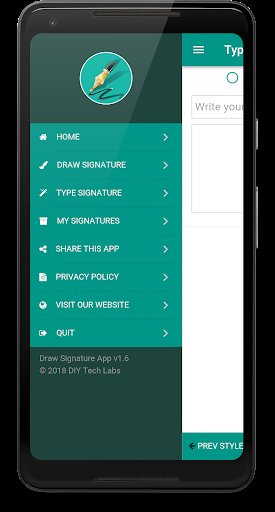
- Type a signature instead and pick from ready-made signature fonts
- Save signatures as transparent PNG images for documents, PDFs and forms
- Keep multiple signatures saved on your device and reuse them anytime
- Works offline: signatures are created and stored only on your device
How It Works
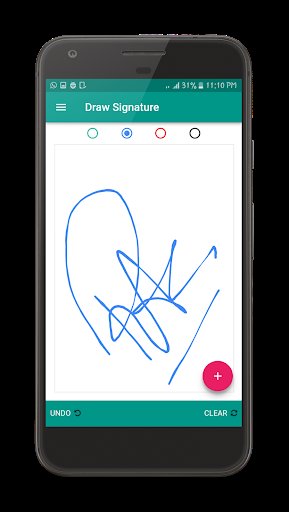
- Draw or type. Open the drawing canvas and sign with your finger, just as you would on paper. If your handwriting refuses to cooperate, switch to typing: enter your name and browse the signature fonts instead.
- Style it. Adjust the pen thickness so the strokes look like a real pen, and pick a color — classic black or blue ink are the usual choices for documents. Undo and redo until the signature looks like yours.
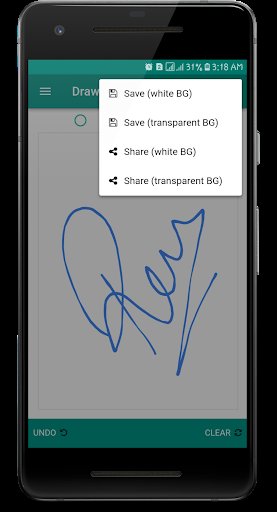
- Save as a transparent PNG. Save the signature and the app exports it as a PNG image with a transparent background, stored on your device with your other saved signatures.
- Use it on documents. Place the PNG onto PDFs, forms, photos and documents in whatever app you already use. Because the background is transparent, only the signature itself appears — no white box around it.
See Draw Signature in Action
Drawn vs Typed Signatures
Both routes end at the same place — a transparent PNG — but they suit different people and different documents:
| Drawn Signature | Typed Signature | |
|---|---|---|
| How it is made | You sign on the screen with your finger | You type your name and choose a signature font |
| Looks like | Your real handwriting, personal and unique | A polished calligraphic style, neat and consistent |
| Best for | Contracts and documents where the signature should match your paper one | Quick forms, creative work, and anyone whose on-screen handwriting wobbles |
| Takes | A few tries to get a stroke you like | Seconds — type, pick, save |
Who It Is For
Freelancers and Contracts
Independent workers sign agreements constantly: project contracts, NDAs, invoices, delivery confirmations. Draw Signature keeps a proper signature on the phone, so a contract that arrives by email can be signed and returned from the same device — no printer, no scanner, no trip to a copy shop. The transparent background keeps the signed page looking clean and professional.
Students and Assignments
Coursework, declaration forms and internship paperwork often ask for a signature on a document that only exists as a file. Students use the app to sign and submit from their phone instead of hunting for a printer on campus, and a saved signature means the tenth form takes no longer than the first.
Business Forms and Office Paperwork
Leave requests, approvals, receipts and internal forms still run on signatures in many workplaces. If your part is simply to sign and pass the document along, doing it from your phone removes the slowest step in the chain.
Watermarking Photos and Artwork
Photographers and artists use a saved signature as a watermark: place the transparent PNG in a corner of a photo before sharing it, and your name travels with the image. A typed signature in a stylish font works especially well for this.
Tips for a Better-Looking Signature
- Sign at your natural speed. Slow, careful strokes come out shaky; a fluent motion looks like real ink.
- Zoom your effort into the pen settings: a medium thickness usually reads best once the PNG is placed on a document.
- Rest your hand and make a few attempts — even on paper, nobody signs perfectly the first time.
- Save two or three variants. A full signature for formal documents and a shorter initials version for quick forms covers almost everything.
- Check the result on a white and a dark background before you rely on it; black and dark blue ink behave like real pens on most forms.
Frequently Asked Questions
Is Draw Signature free?
Yes. Draw Signature is free to download and use on Google Play. A separate Pro edition with the full feature set is also available.
How do I save my signature with a transparent background?
Draw or type your signature, choose a color and pen style, then save. The app exports the signature as a PNG with a transparent background, ready to place on documents, PDFs and forms.
Are my signatures uploaded anywhere?
No. Your signatures are created and stored only on your device. The app does not upload them to any server.
Can I type a signature instead of drawing?
Yes. You can type your name and pick from stylish signature fonts if you prefer a typed signature over a hand-drawn one.
Can I keep more than one signature?
Yes. You can create and save several signatures on your device — for example a formal one for contracts and a shorter one for everyday forms — and pick whichever you need when you export.
Does Draw Signature work offline?
Yes. Creating, styling and saving signatures works entirely on your device without an internet connection. You only need to be online to download the app or follow the link to Google Play.